
Last updated July 12, 2026, Version 0.34
Generating screenshots in multiple languages for the plugin and keeping them up to date with the development might become a time intensive task.
GatherPress allows to generate screenshots for the plugin automated & manually, while sharing the same, wp-playground/cli powered, setup. The started playground imports the GatherPress/gatherpress-demo-data and sets some options, e.g. to hide GatherPress’ admin-notices.
GatherPress uses Playwright for this task, which is a tool to do end-to-end testing. Playwright has an advanced screenshots API, that allows to take screenshots for a full-page or an element only. Like for the e2e tests, it is configurable what browsers to use, what screenresolution to set, etc.
With the help of WordPress Playground, identical instances are created one for each language, based on one identical blueprint.json file.
There are two screenshot suites, both driven by the same reusable workflow (screenshot-generation.yml):
| Suite | Spec | Output | Languages |
|---|---|---|---|
| wordpress.org plugin assets | wporg.spec.ts | .wordpress-org/ | every locale with more than 90% of finished translations |
| Documentation images | docs.spec.ts | docs/user/user-doc-media/ | English only |
For the wordpress.org suite, the names of the generated files match the captions in the plugins readme.md! For the documentation suite, the screenshot names are semantic (settings-rsvp-tab.png) and are referenced directly from the markdown under docs/user/ — a spec can also highlight an element in GatherPress’ brand color via the highlight helper to draw the reader’s attention.
Automated Screenshots
…are generated using GitHub actions workflows: WordPress.org screenshot generation and Documentation screenshot generation are thin callers that hand their locale list, Playwright suite, and output directory to the shared reusable workflow.
While such a workflow could run on every major- and minor-, but not on bug-fix-releases, both are currently started manually via workflow_dispatch.
1. Start the workflow
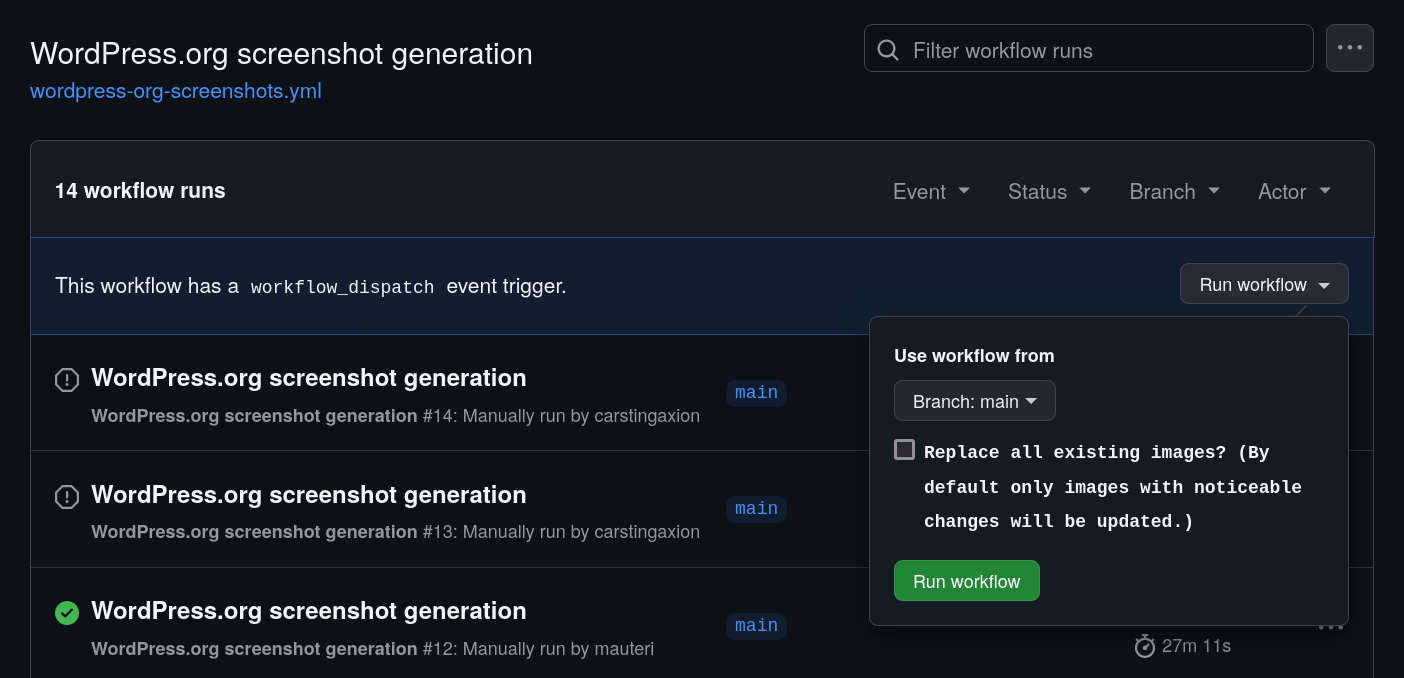
i. Just triggering this workflow will start the default routine, which checks for differences to prior versions of images and only updates the screenshots with noticaeable changes. Screenshots that did not exist before, will be created automatically.
ii. Or running the workflow with the “Update all Screenshots?” enabled, will skip the comparison and recreate all Screenshots.
2After the workflow has successfully ran …
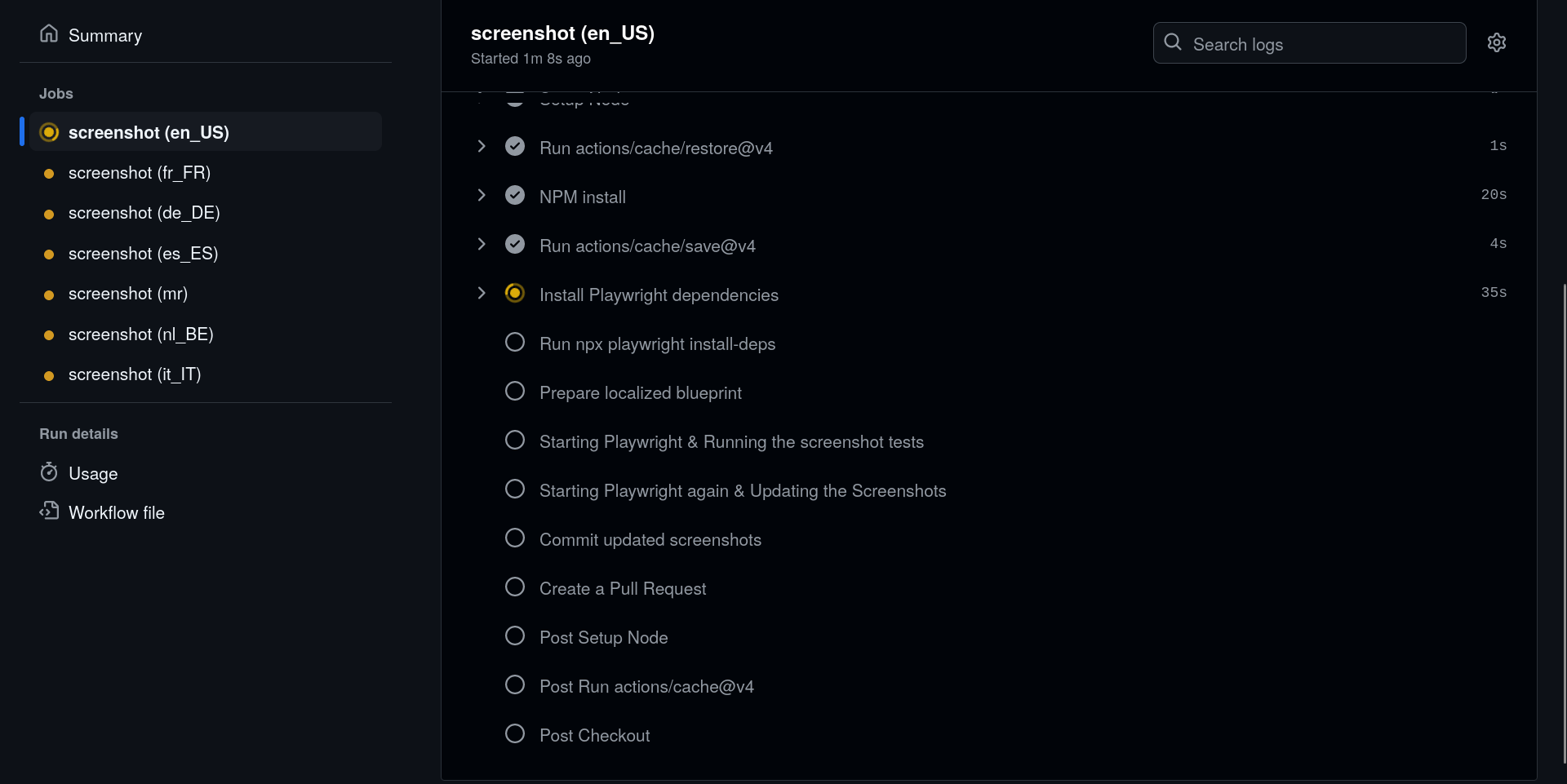
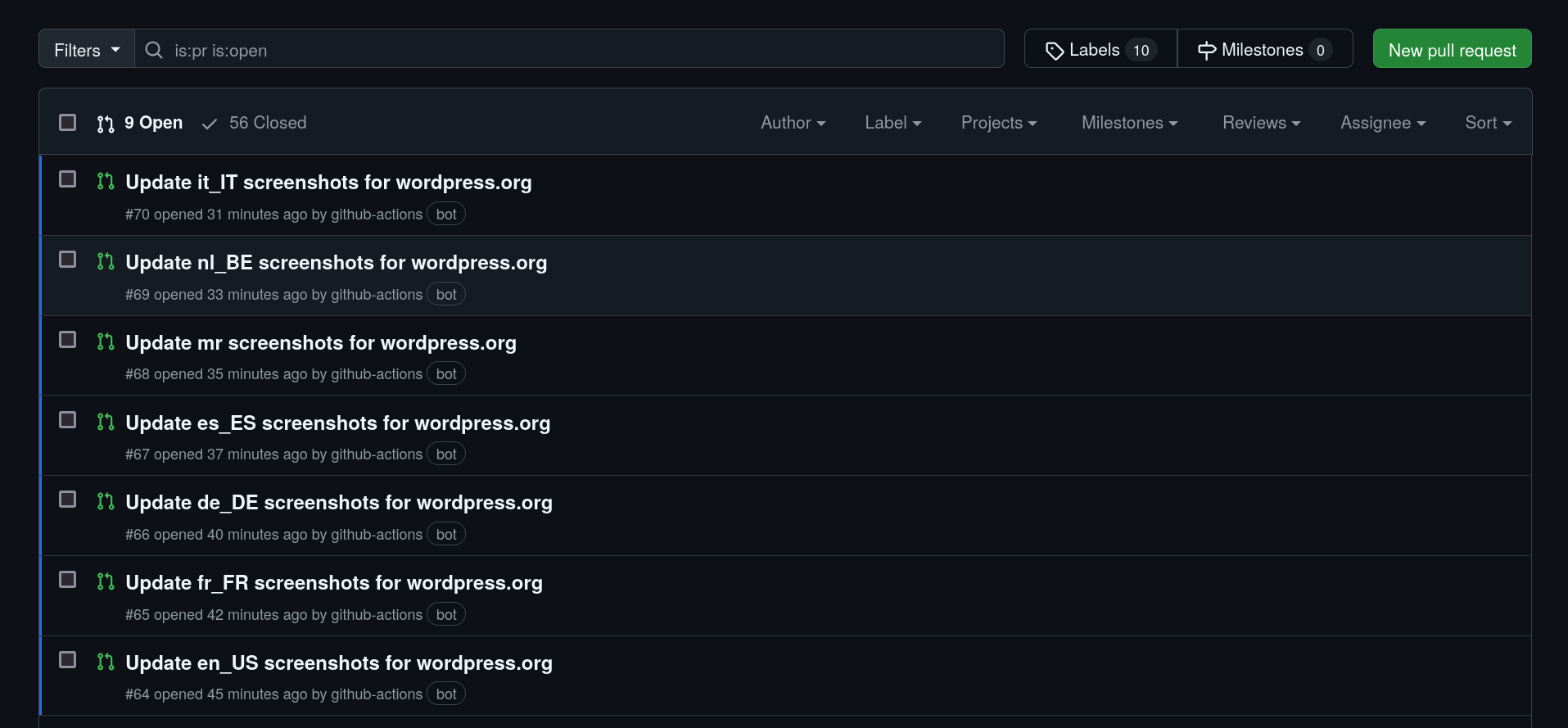
3. … pull_requests are created, one for each language, that could be reviewed by native speakers.
How the workflow publishes changes
Some details worth knowing when reviewing the generated pull requests:
- The locale jobs run sequentially (
max-parallel: 1) so later jobs reuse the cached Playwright browser, and every job is bounded by timeouts — a hung step fails within minutes instead of stalling the whole matrix. - Each per-locale branch is cut from
origin/developand contains only the.wordpress-org/screenshot changes; incidental changes elsewhere in the run’s checkout (for example the image recompression pass) are never committed. - The pull requests target
develop— like all other work, screenshots reachmainwith the next release. They carry the Skip Changelog label, since screenshot regeneration doesn’t warrant a changelog entry. - Branch, commit, and pull request are created by
peter-evans/create-pull-requestwithsign-commits: true— the same pattern as the hook-docs workflow. Commits are created through the GitHub API and therefore signed by GitHub (“Verified”), which the branch protection ondeveloprequires. - Each pull request has auto-merge (squash) enabled and its branch is deleted after merging — the per-locale PRs land on their own once required checks pass, and only stay open for human review when something fails.
Manually generating Screenshots
The workflow scripts can also be used to manually create screenshots. In general, only a Playground instance is needed. This could have different languages enabled or additional plugins added, that may extend GatherPress or demonstrate a new feature.
Install dependencies
- To generate screenshots you will have to install playwright using the following command:
npx playwright install --with-deps[!NOTE]
You also need to use Node.js 20 or later
- Install the dependencies to create the Playground instance, using the following command:
npm ci --legacy-peer-depsStart the Playground
A call to npm run playground will automatically setup a wp-playground/cli powered WordPress instance, already prepared to mount GatherPress from the current directory.
npm run playground -- --blueprint=./my/sample/addon/blueprint.jsonImmediately the testing website will be reachable at http://127.0.0.1:9400, the user is admin and the password is password.
Run the Screenshot generator
Now while Playground is running in the background, it’s possible to start the screenshot generator.
Choose one of the following options:
- For the headless mode, use the following command:
npm run screenshots:wporg- Run Playwright visually (to run generating screenshots in isolation and change what’s happening), use:
npm run screenshots:wporg:ui- For debug mode (which will open the browser along with Playwright Editor and allows you to record what’s happening), use the following command:
npm run screenshots:wporg:debugRun files that have events.spec in the file name.
npm run screenshots:wporg:debug -- events.spec[!NOTE]
When writing a screenshot-generator(-test), using the debug mode is recommended since it will allow you to see the browser and the test in action.
- Run Tests independently AND visually using the Playwright VSCode extension Tell the VSCode extension what webserver to use, by adding the following to your
settings.json:
   "playwright.env": {
      "WP_BASE_URL":"http://127.0.0.1:9400"
   },
Resources
Playwright & WordPress
Screenshots for WordPress Plugins
More about wp-playground/cli, as the environment
Examples with great documentation: